
Help, I Can't Import My Brushes or Swatches Into Procreate (Troubleshooting)
If you’re having trouble installing your brushes or swatches in Procreate, follow the steps below.
Follow the Installation Guide
First, please review our step-by-step installation guide here:
👉 How to install brushes or swatches
If the issue persists, try the troubleshooting steps below.
Troubleshooting Installation Issues
1. Make Sure the Files Are Unzipped
Before importing files into Procreate, they must be extracted.
How to unzip files:
- Open the Files app on your iPad.
- Tap the .zip file once.
- A new folder will appear with the extracted contents.
- Inside that folder, you should see files with extensions like .brushes or .swatches (not .zip).
Procreate cannot import ZIP files directly.
2. Try a Different Installation Method
There are multiple ways to install brushes or swatches. If one method doesn’t work, try the others.
Method 1: Install Using the Files App (Recommended)
- Open the Files app.
- Navigate to the .swatches or .brushes file.
- Tap the file once.
- It should automatically open in Procreate.
- Swatches will appear at the bottom of your Palettes list in the Color Panel.
Method 2: Import from Within Procreate
- Open Procreate and any canvas.
- Tap the Color Panel (top-right circle).
- Go to the Palettes tab.
- Tap the + (plus) icon.
- Select New from file.
- Locate and tap the .swatches file to import it.
Method 3: Drag and Drop (Split Screen)
- Open Procreate and a canvas.
- Swipe up to reveal the Dock.
- Drag the Files app into Split View or floating mode.
- Locate the .swatches file.
- Tap, hold, and drag it into Procreate.
3. Save Files Locally (Avoid iCloud Issues)
Saving files to your iCloud Drive can sometimes cause issues. Instead, try saving them directly to your iPad, like this:
- When downloading, tap Share → Save to Files.
- Choose On My iPad (not iCloud).
- Extract the ZIP file there before importing.
4. Check Available Storage
Large ZIP files need enough space to extract.
- Go to Settings → General → iPad Storage.
- Free up space if needed by deleting unused apps or files.
5. Re-download the File
If the download was interrupted, the file may be corrupted.
- Re-download the ZIP file.
- Make sure you’re connected to a stable Wi-Fi network.
- Remember to download the file to your device, rather than iCloud (see point 3)
6. Set Procreate as Default App (conflicting app issues)
Sometimes another drawing or color-related app becomes the default app for opening swatch files (like .swatches). When that happens, Procreate won’t import the file automatically.
Fix: Change the default app to Procreate
- Locate your .swatches file in the Files app
- Tap and hold the file
- Select Get Info
- Find Always Open With
- Choose Procreate
- Make sure it is set to Always open with Procreate
- Try installing the swatches again
7. Update Your iPad and Procreate
Ensure both your iPad and Procreate are kept up-to-date, as outdated software can cause import issues.
- Update Procreate via the App Store.
- Update iPadOS via Settings → General → Software Update.
8. Use Safari for Downloading
Some browsers (like Chrome) may cause download issues.
- Try downloading your files using Safari instead.
9. Check the Brush Library View (Procreate Update)
Since some of the lessons were created, Procreate has had a major update. You now have multiple brush libraries.
If you can’t find certain brushes after installation, they may be in a different library view.
Here’s how to see all your brush libraries:
- Open your Brush Library in Procreate.
- Tap the arrow next to Procreate Library.
- Select Back to Libraries.
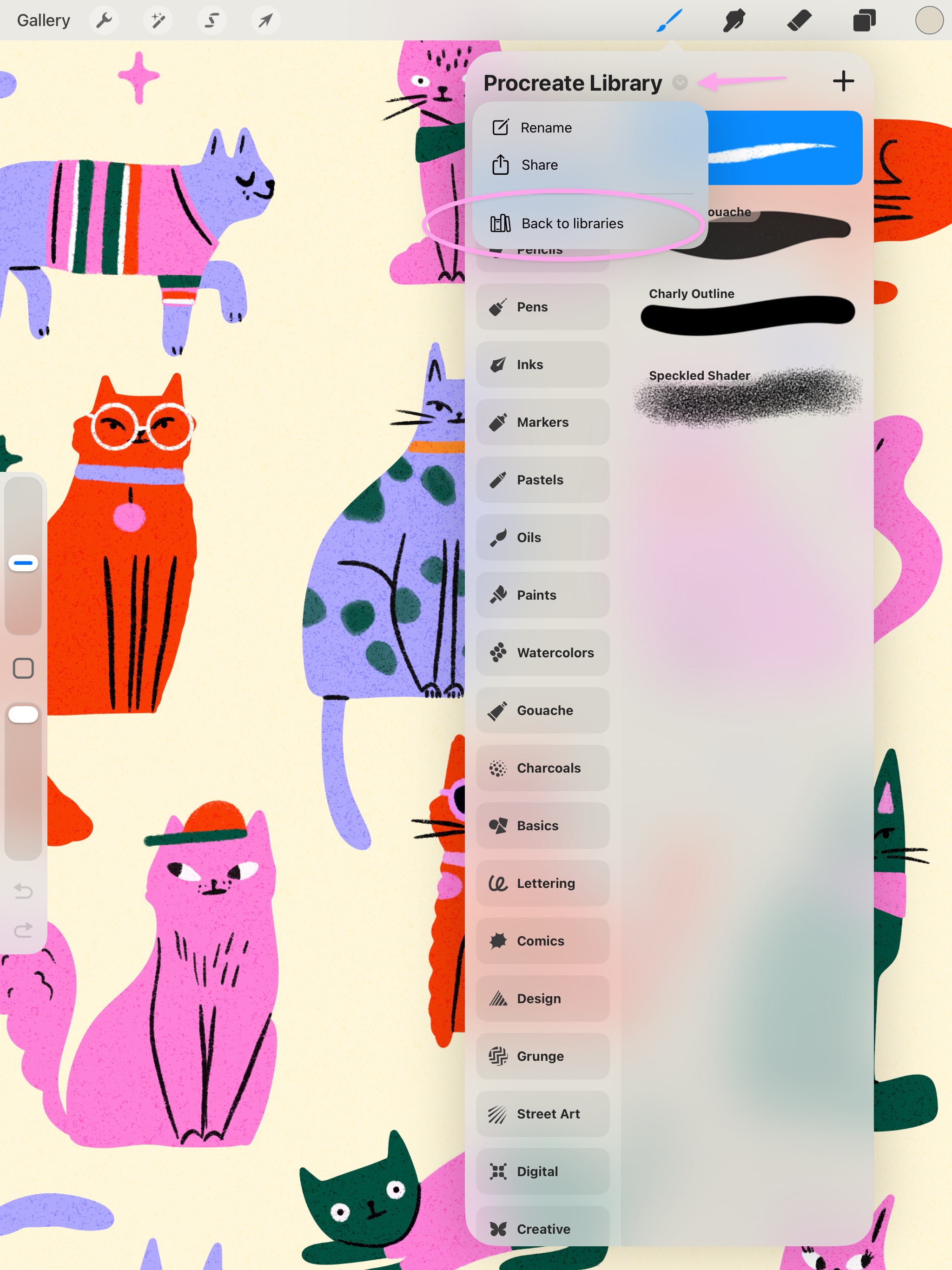
You’ll now see an overview of all available brush libraries.
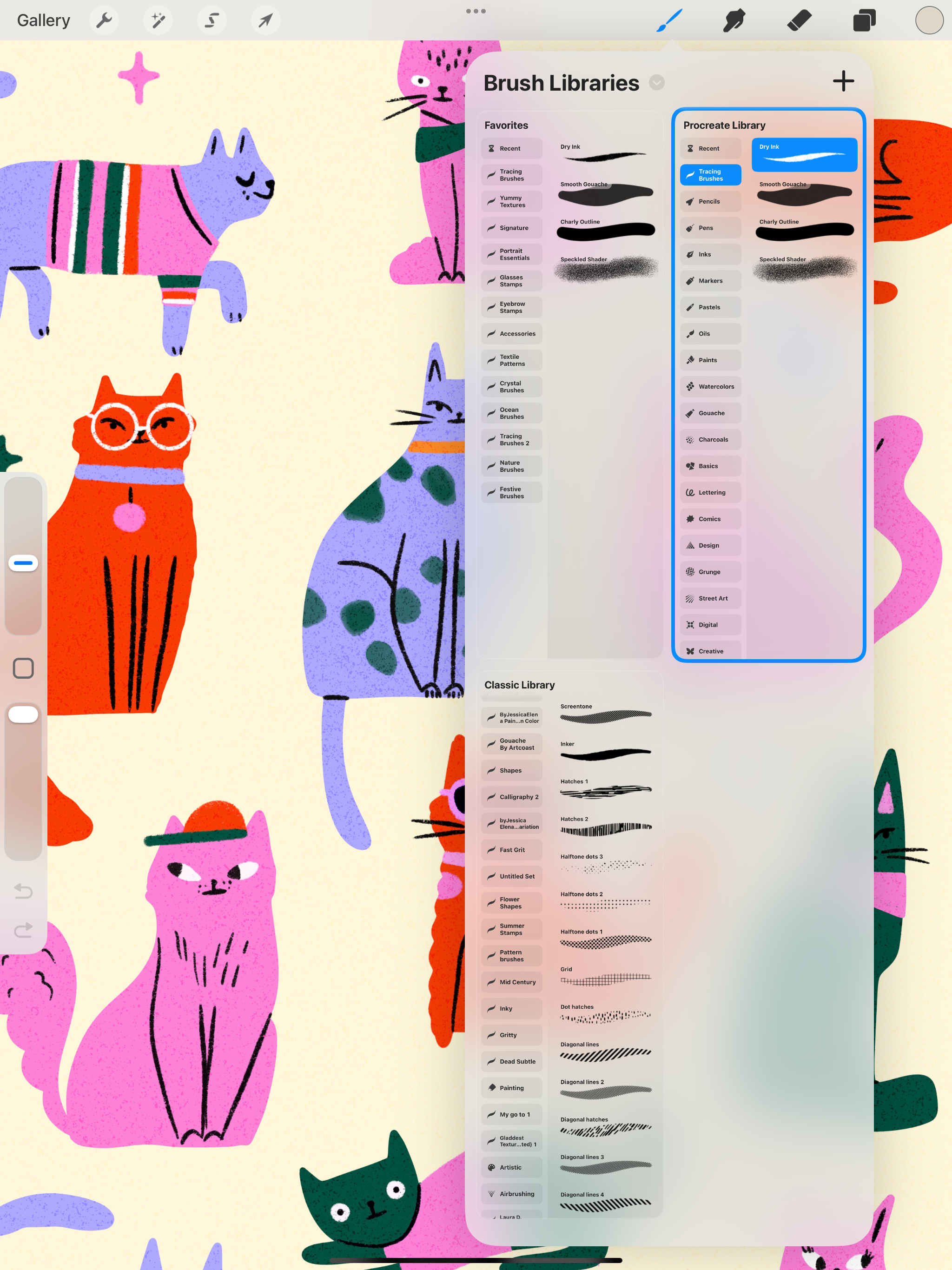
The brushes used in older lessons are usually located inside the Classic Library.
💡 Still Need Help?
If you’re still unable to install your brushes or swatches, please email us at
📧 support@funwithdrawing.com
Include:
- A detailed description of the issue
- A screenshot or screen recording (if possible)
This helps us resolve your issue faster.